Downloads
Linux
Detected on this device
Windows
Detected on this device
macOS
Detected on this device
These are official upstream builds and do not include your self-hosted server configuration.
See manual setup steps.
Android
Detected on this device
- rustdesk-nightly-aarch64-signed.apk
- rustdesk-nightly-armv7-signed.apk
- rustdesk-nightly-x86_64-signed.apk
- rustdesk-nightly-universal-signed.apk
These are official upstream builds and do not include your self-hosted server configuration.
See manual setup steps.
Mobile Installation
Scan this QR code in the RustDesk mobile app
Android
- Download and install the official RustDesk APK for your device from the list above.
- Open RustDesk, go to Settings, and tap the (QR code icon) in the upper-right corner. Allow camera access and scan the QR code above.
- Alternatively, go to Settings → ID/Relay Server and paste the configuration string from the Desktop Client Configuration section, or enter the server details manually.
iOS
- Install RustDesk from the App Store.
- Open RustDesk, go to Settings, and tap the (QR code icon) in the upper-right corner. Allow camera access and scan the QR code above.
- Alternatively, go to Settings → ID/Relay Server and paste the configuration string from the Desktop Client Configuration section, or enter the server details manually.
Desktop Client Configuration
The downloads on this page are preconfigured.
You only need this section when using the macOS upstream client or a standard RustDesk client.
You only need this section when using the macOS upstream client or a standard RustDesk client.
Copy this configuration string and paste it into RustDesk via Settings → Network → ID/Relay Server → (Import Server Config):
Quick Import (recommended)
- Open RustDesk and click the menu button (⋯) next to your ID.
- Select Network and unlock the settings with administrator privileges.
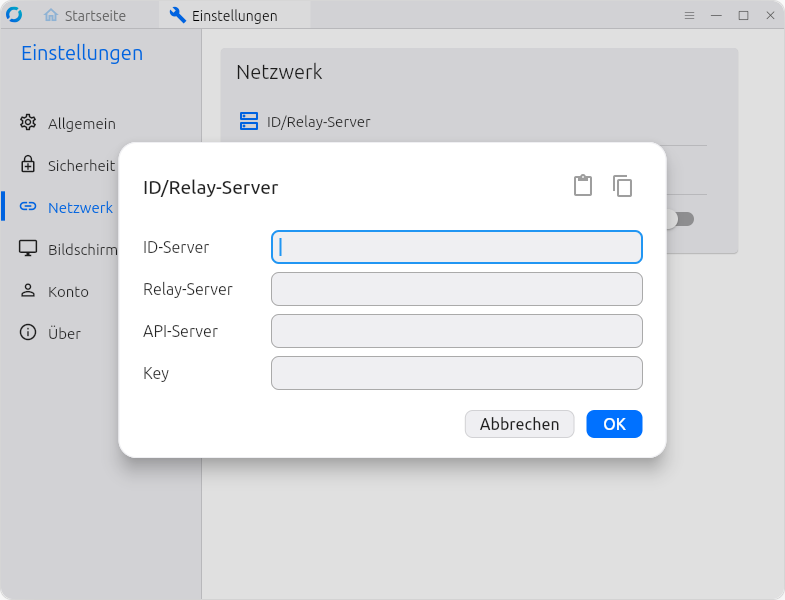
- Open ID/Relay Server, click (Import Server Config), and paste the configuration string from the section above.
Manual Entry
- Open RustDesk → ID/Relay Server settings (see Quick Import).
- ID server:
- Relay server:
- API server:
- Key:
- Click Apply or OK to save.
System Requirements
Linux
The .deb, .rpm and AppImage packages are built on Ubuntu 20.04 and require a 64-bit distribution with glibc 2.31 or newer and libstdc++ GLIBCXX_3.4.28 or newer (e.g. Ubuntu 20.04, Debian 11, Linux Mint 20 or newer).
Flatpak
The Flatpak bundle requires the org.freedesktop.Platform/x86_64/24.08 runtime.
Install it first if it is not already on your system:
flatpak install flathub org.freedesktop.Platform/x86_64/24.08Troubleshooting
- GLIBC_2.34 / GLIBCXX_3.4.29 not found: Your distribution is older than the build baseline. Use the AppImage or Flatpak, or upgrade your system.
- Flatpak runtime not found: Add the Flathub remote and install the runtime first with the command above.